
Features · Always
All of it lives in the menu bar.
No window to keep open. The app notices a call, records when you say so, and stays out of the way. Recent notes, the Library and Settings are one click away.
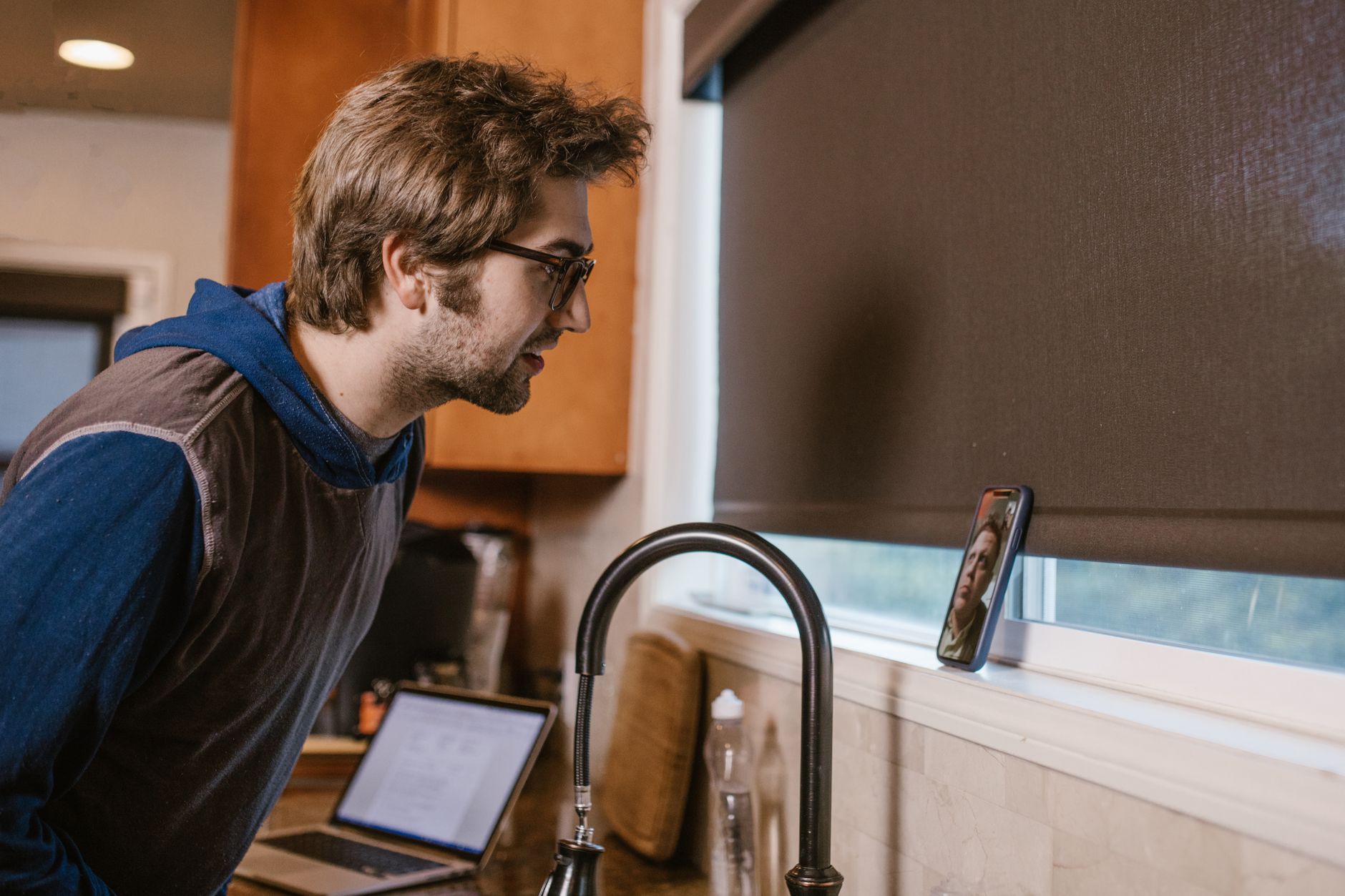
Everything in this menu works, including Settings. The call is simulated; the behaviour is the app's.
Why there is no window.
A meeting tool you have to open is a meeting tool you forget. NoteHand sits in the menu bar, watches for the apps you told it to watch, and offers to record when one of them is in front of you. When the call ends, the notes are written and the popover says so.
Everything you would ever need to change is in Settings inside the same popover: who writes the notes, which speech model, which folder, which apps to detect, which key dictates. Nothing else to configure.
Menu bar
What the popover does
Detects the call
Zoom, Teams, Meet, FaceTime, Slack and Discord in front of you. Choose which in Settings. For anything else, phone on speaker included, press Command-Shift-R.
Records only the meeting
Audio is captured from the meeting app and your microphone, not from everything on the Mac. It is written as it goes, so a crash keeps everything up to that point.
Keeps the last notes close
Recent meetings sit in the popover. Click one and the markdown file opens. The Library is a panel away.
Sets up once
Consent, permissions, speech model, notes provider, export folder. Five minutes, resumable, and it does not ask again.
What it asks for, and why
Microphone, for your side of the call. Screen Recording, which is how macOS lets an app capture another app's audio; no picture is ever taken. Accessibility, on the direct download only, so dictation can type into other apps. Each is asked once, explained on screen, and the app works with whatever you grant.
It runs in the App Sandbox with the hardened runtime and a privacy manifest, and the App Store build went through Apple's review. The export folder you chose is the only place on disk it can reach.
Wherever the call is
Meeting app or not, the menu bar is where recording starts.


Compared
A menu bar app vs a bot in the call
| Meeting bot | Menu bar app | |
|---|---|---|
| Visible to the other participants | ✓ | ✕ |
| Needs an account | ✓ | ✕ |
| Works for calls outside a meeting app | ✕ | ✓ |
| Audio stays on the Mac | ✕ | ✓ |
| Works offline | ✕ | ✓ |
| Settings live with the app | In a web dashboard | ✓ |
| Something to host or administer | ✓ | ✕ |
Menu bar
Why it stays out of the way
One icon, one shortcut
The waveform in the menu bar shows whether it is listening. Command-Shift-R records anything, whether or not it was detected.
Everything one click away
Recent notes, the Library and Settings are panels of the same popover. There is no main window to find.
Settings that flow through
Change the notes provider or export folder here and it applies everywhere: the notes, the Library, Coach.
Questions
The ones we get asked about Menu bar.
Does it record everything on my Mac?
No. It captures audio from the meeting app it detected plus your microphone, and only while you are recording. Nothing else on the Mac is heard.
Which apps does it detect?
Zoom, Microsoft Teams, Google Meet, FaceTime, Slack and Discord. Turn any of them off in Settings. For anything else, press Command-Shift-R.
Does it start recording on its own?
It notices the call and offers. You press record, or use the shortcut. Getting consent to record is your responsibility, and the app asks you to confirm that during setup.
What permissions does it need?
Microphone and Screen Recording, the latter being how macOS allows another app's audio to be captured. The direct download also asks for Accessibility so dictation can type into other apps. Each is asked once and explained.
Other features